Create Activity GeoTracks Mobile

Edits will not be sent to the central database, or visible on other user’s devices, until the user “syncs edits”. Use the My Edits screen to upload or “sync edits”.
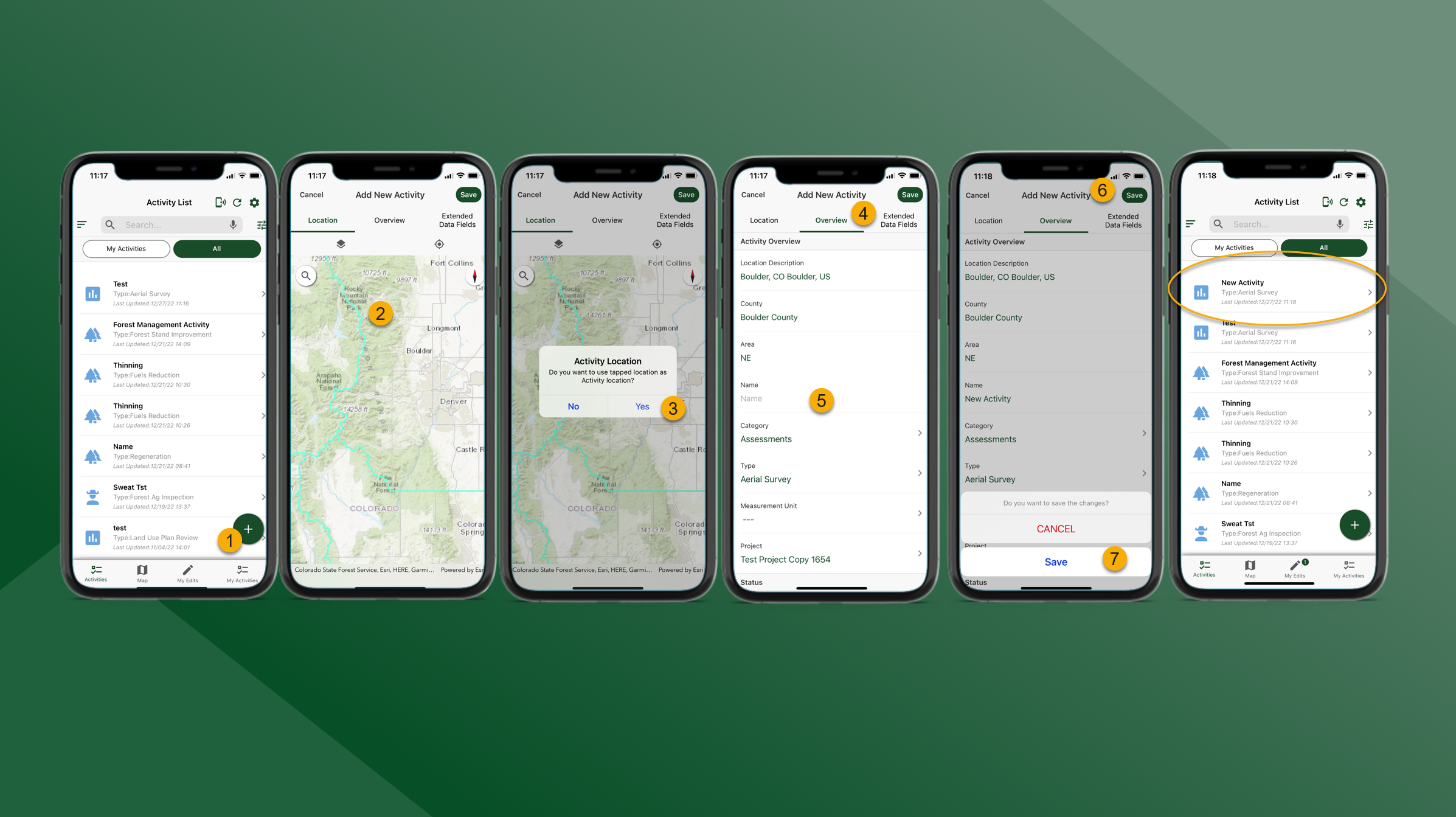
To create an Activity on GeoTracks Mobile, follow the steps outlined below:
The functionality available to the user is based on the user’s role and permissions.
On the Activities List tap Add Activity in the bottom right corner to open the Add New Activity Form.
Select the Activity Location. Search or pan/zoom the map, or use the crosshairs button on the screen to zoom to your location.
Tap on the map to select a location and then tap YES.
Tap the Overview tab
Complete Activity Overview
Tap Save to create the new Activity
Tap Save again to confirm the Activity will be created. The new Activity will appear at the top of the Activities List.

The user will be prompted if a required field is incomplete.